Menu Overview
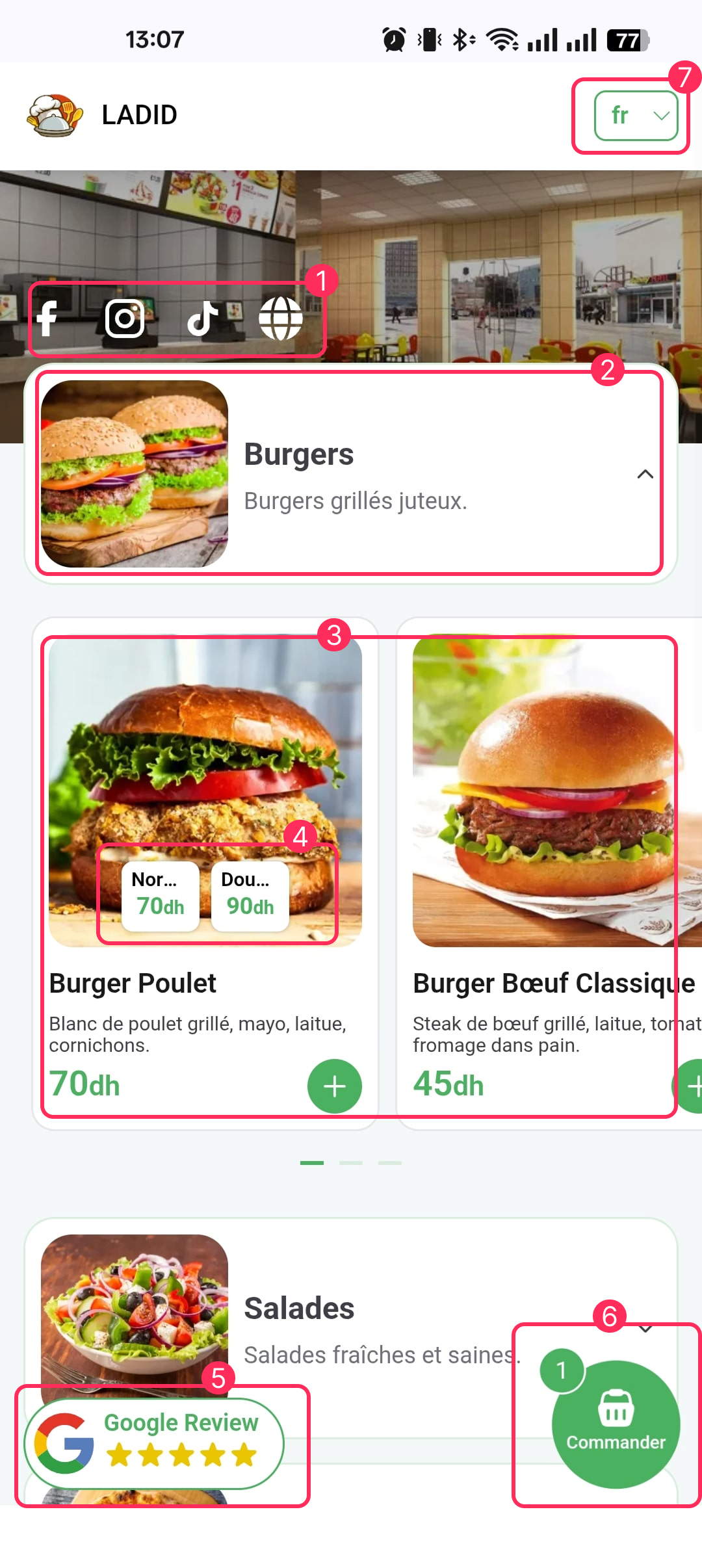
The customer-facing menu page is designed to be intuitive and comprehensive, combining navigation, promotions, and ordering into a single, seamless flow. This section breaks down the key features of the menu interface, helping you validate the customer experience before publishing your menus.
1. Social Media and Website Links
You can add links to your social media profiles (Facebook, Instagram, TikTok) and your official website. This feature helps customers connect with your restaurant on other platforms, increasing engagement and brand visibility.
2. Categories
The menu is organized into categories, each with a name, a representative image, and a short description. This makes it easy for customers to navigate through your offerings and find what they're looking for.
3. Meal Listings
Each meal is presented with a title, a detailed description of the ingredients, the base price, and prices for different options (e.g., size, weight). This clear presentation helps customers make informed decisions.
4. Product Options
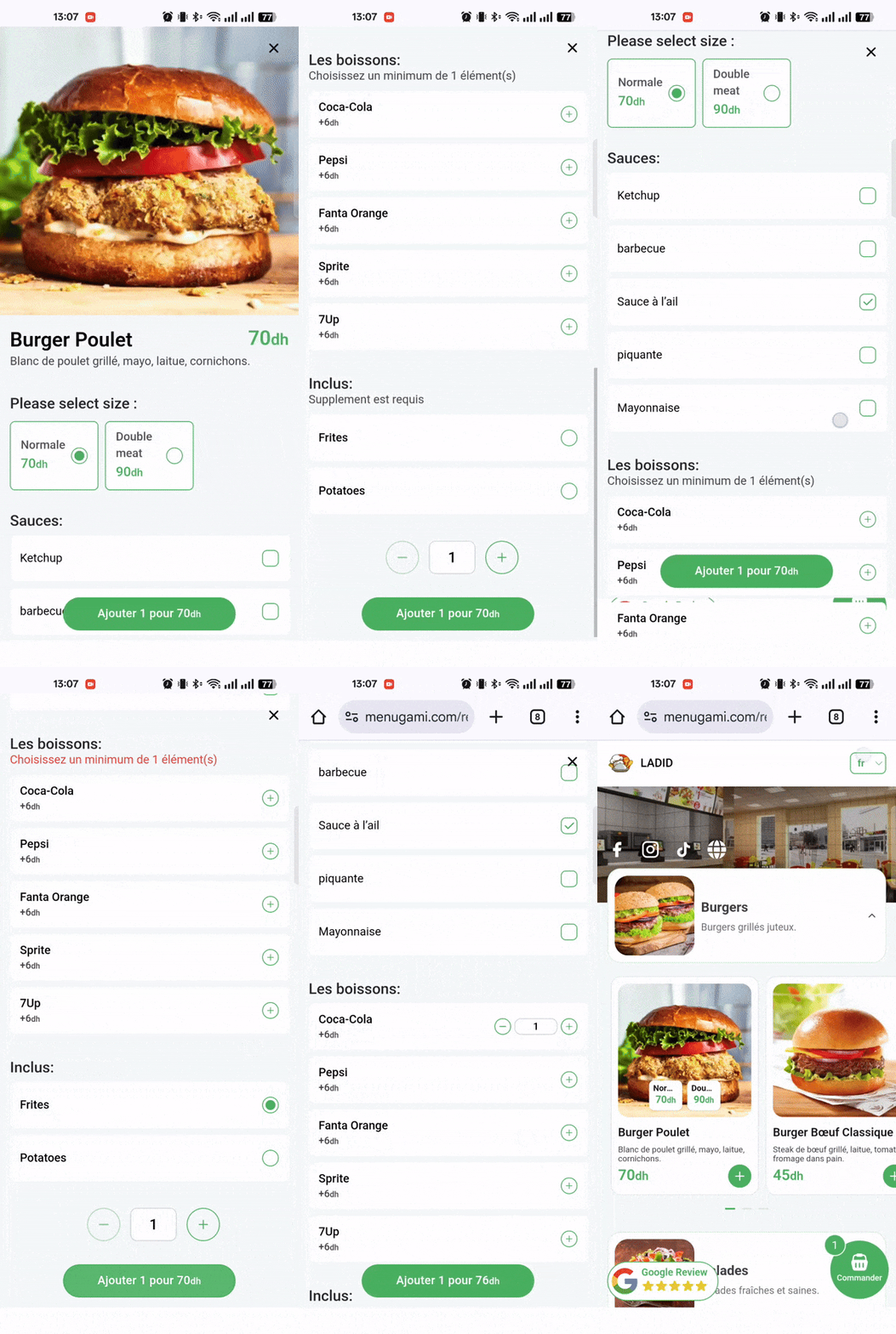
Customers can customize their orders by selecting from various options. For example, a burger could have options for 'Normal' or 'Double' size, each with a different price, providing flexibility and upselling opportunities.
5. Google Reviews Integration
A direct link to your Google Reviews page allows customers to easily leave feedback. This feature helps you build your online reputation and gather valuable customer insights.
6. Shopping Cart (Panier)
The shopping cart allows customers to review their selected items, create an order, and send it directly to the restaurant via WhatsApp for processing. A badge on the icon indicates the number of items in the cart, providing a clear summary of their order.
7. Multi-language Support
The menu can be translated into multiple languages, allowing you to cater to a diverse clientele. Customers can switch languages easily using a dropdown menu, ensuring a welcoming experience for everyone.
Extras Management
You can manage extras for your menu items, offering different types of customizations such as 'unique' (choose one from a list), 'multiple' (choose several from a list), and 'quantity' (specify the amount of an extra). This is highlighted in the accompanying GIF, showing how customers can interact with these options.
8. QR Code Generation
Clients can generate unique QR codes for the entire menu or for individual tables. This allows for easy access and contactless ordering, enhancing the customer experience.
Profile Management
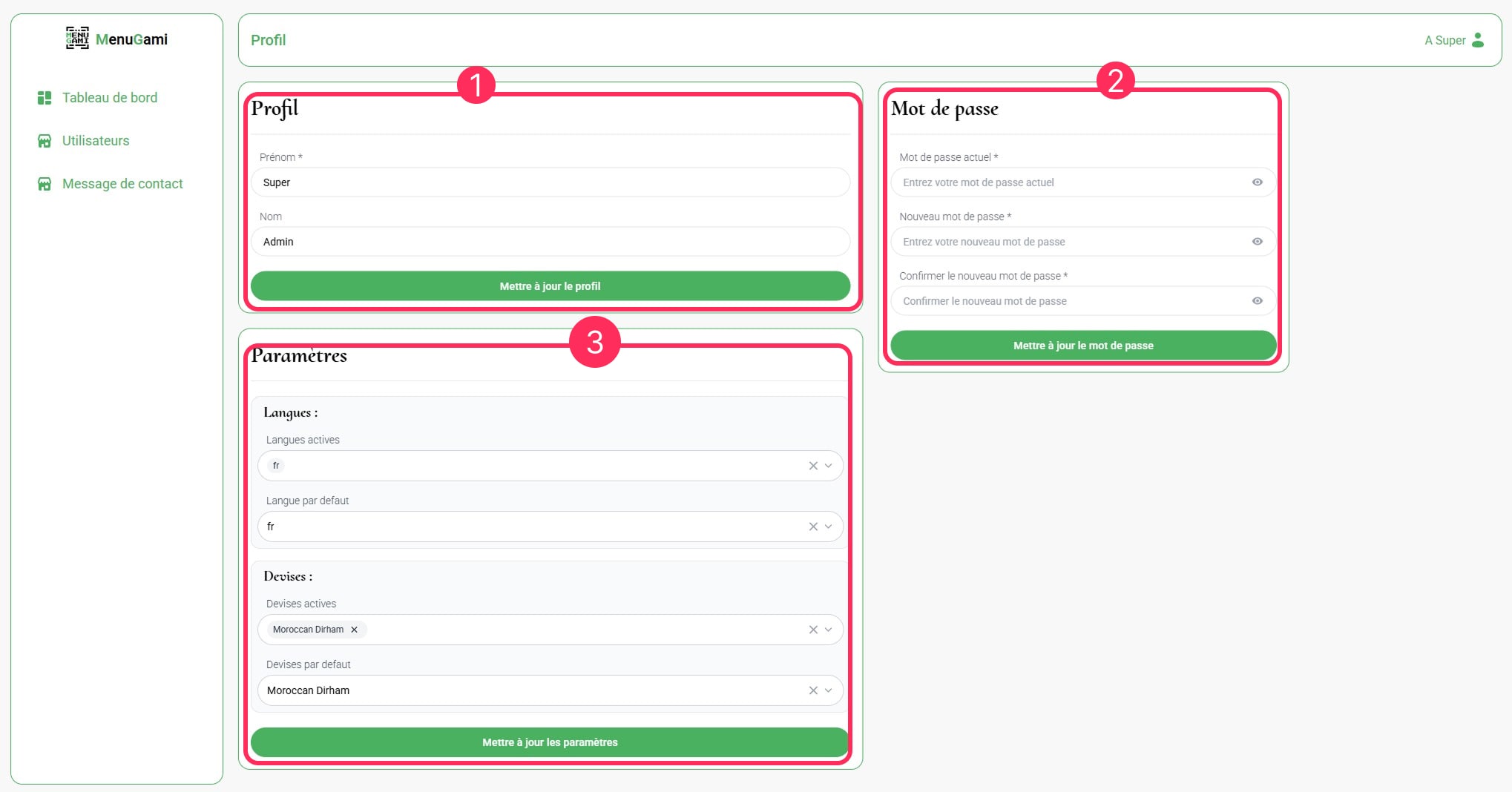
The profile section consolidates all administrator account information. It ensures that teams have an up-to-date repository for billing, communication, and security.
1. Profile Information
You can update your first and last name to keep your personal information current.
2. Change Password
You can securely change your account password by providing your current password and a new one.
3. Settings
You can manage localization settings for your menus, including adding multiple languages and currencies, and selecting a default for each.
Restaurant Management
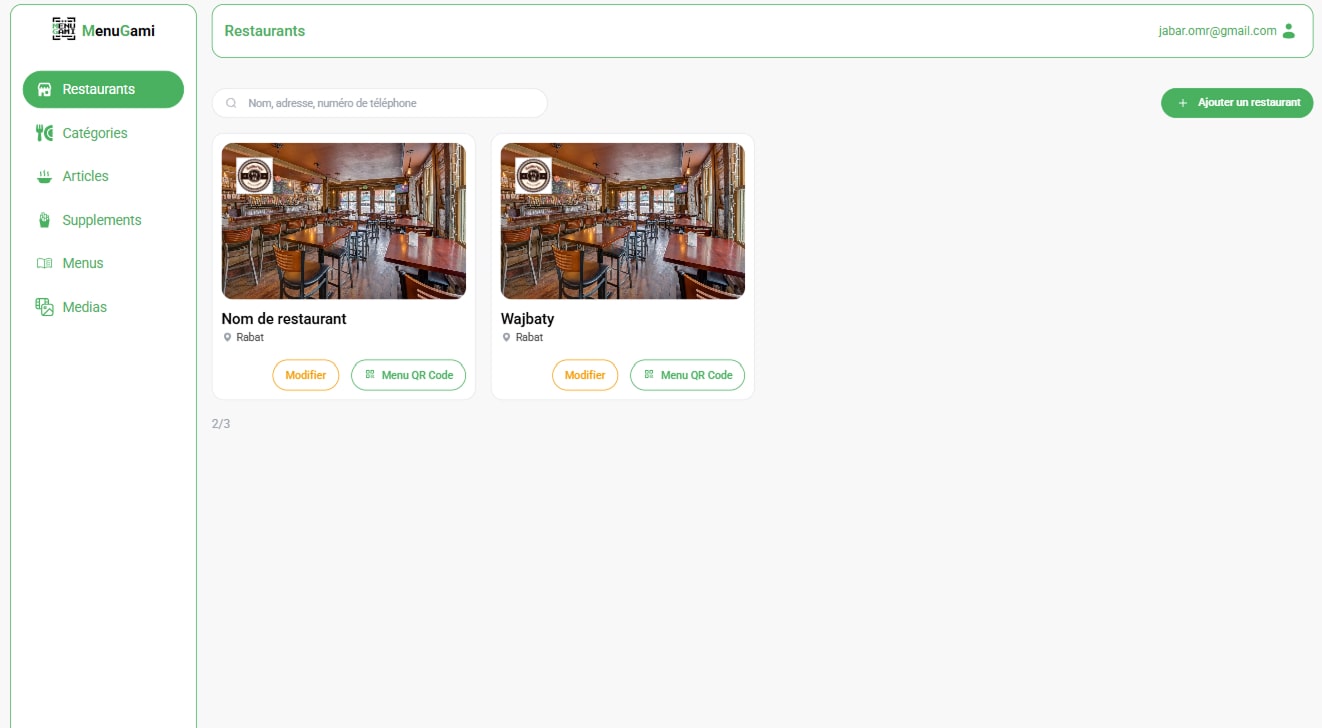
The restaurant module centralizes multi-establishment management, from a high-level list view to detailed configuration forms for each location.
Restaurant List
From this unified view, you can search for restaurants, add new ones, and access quick actions like editing or generating QR codes for tables.
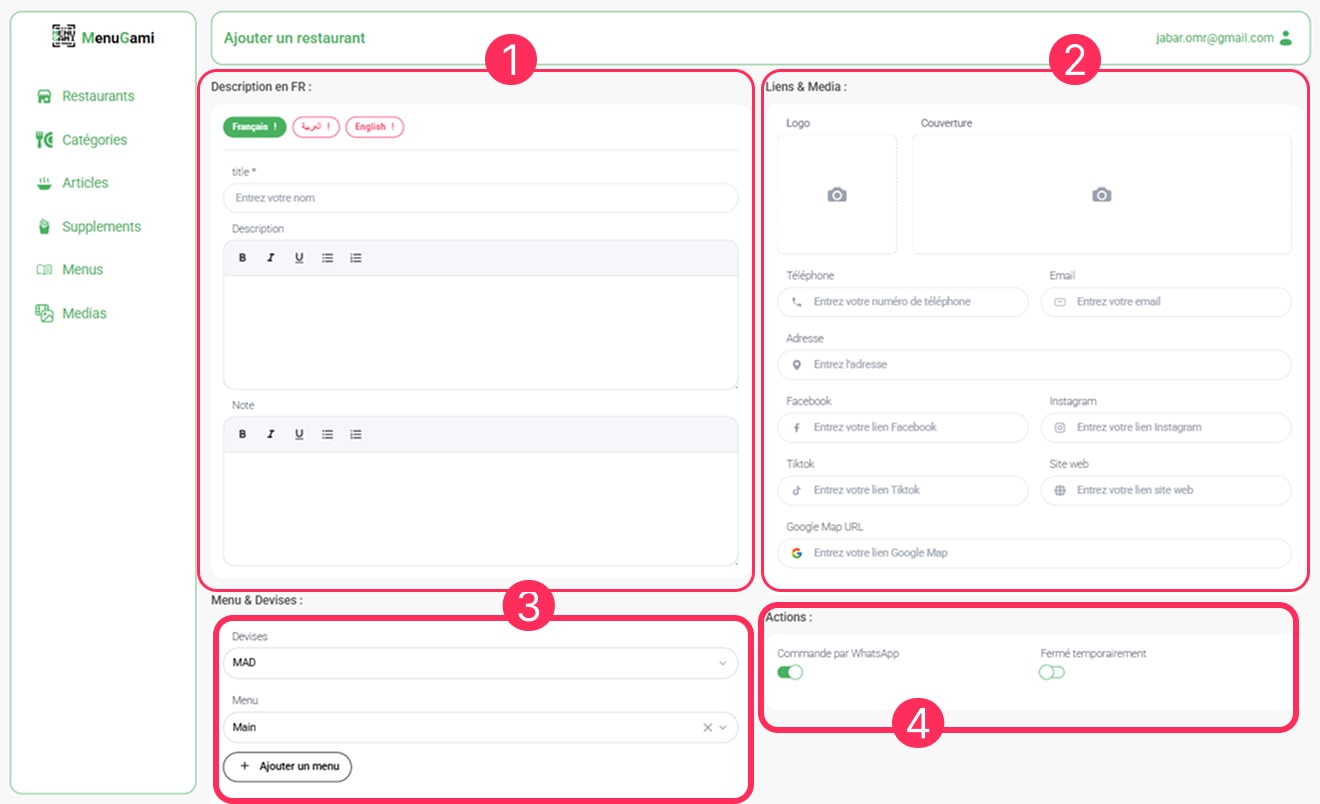
Restaurant Creation & Editing
The form provides a comprehensive interface for managing all aspects of a restaurant’s profile, divided into four key sections:
1. Restaurant Information
Add the restaurant’s title, a detailed description, and a special note that will be displayed on the menu for customers to see.
2. Links & Media
Upload a logo and cover image. Add contact details like phone and address, and link to social media profiles, your website, and your Google Maps/Review page.
3. Menu & Currencies
Assign a default menu and currency for this specific restaurant, ensuring customers see the correct offerings and prices.
4. Actions
Enable or disable WhatsApp ordering and temporarily close the restaurant. These toggles allow for quick operational changes.
Product Management
The product module allows you to build a rich catalog with variants, options, and supplements, while maintaining brand consistency and regulatory compliance.
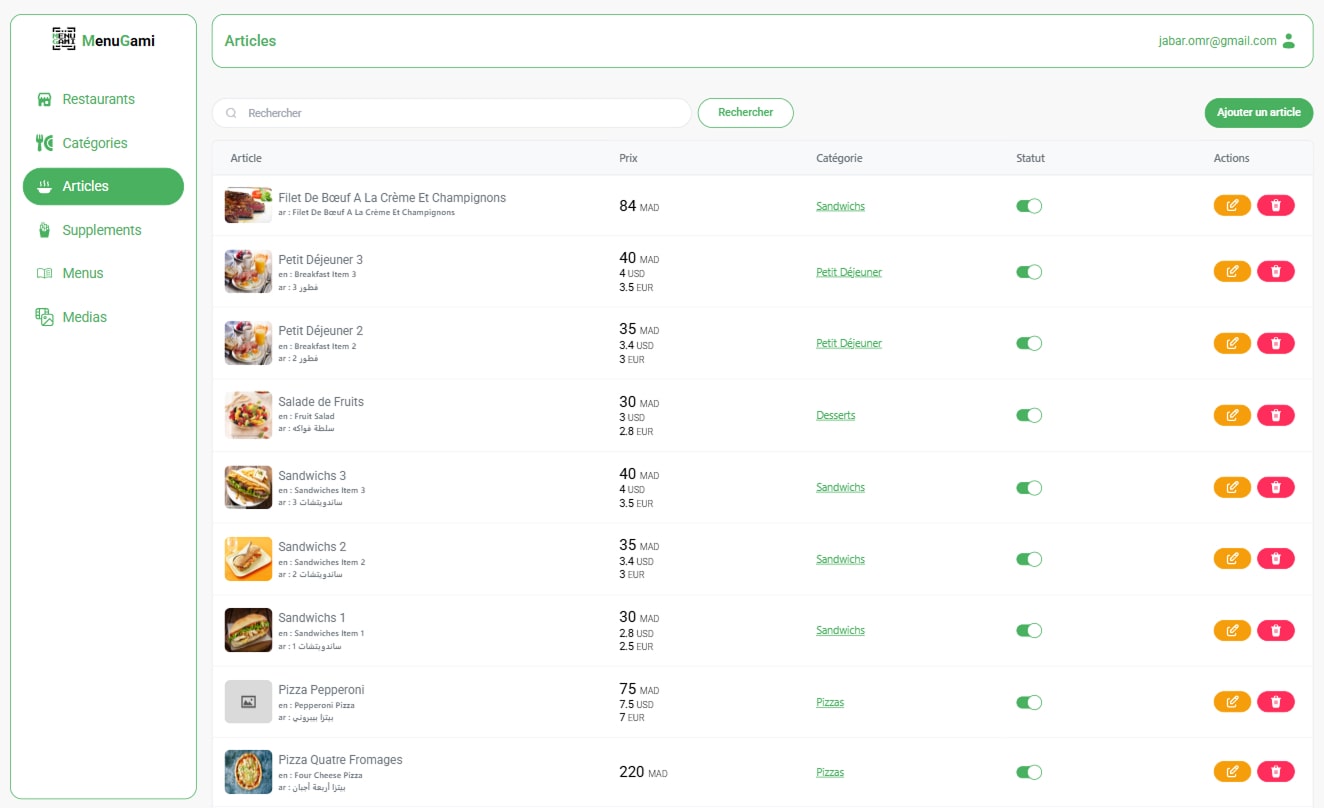
Product List
This is the main view where you can see all your products, search for specific items, and add new ones to your catalog.
Product Creation & Editing
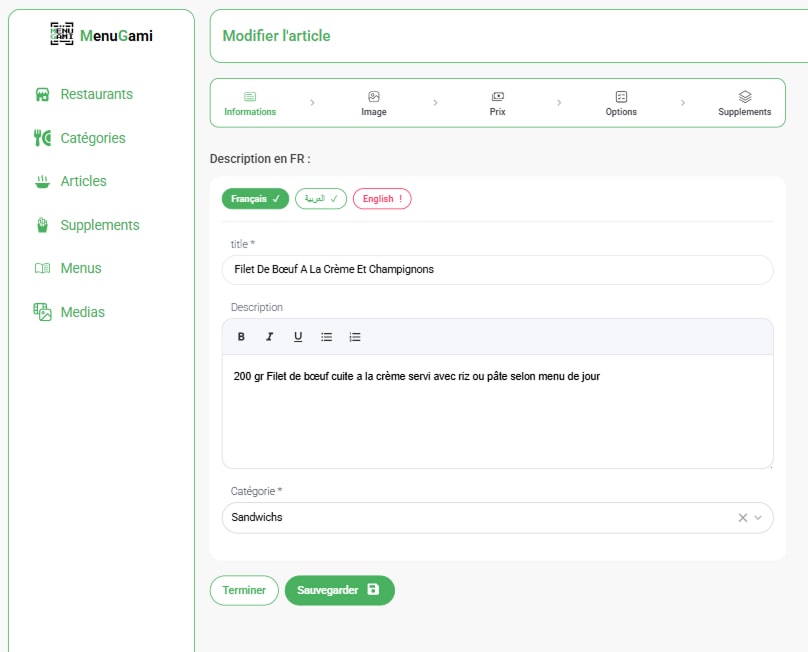
1. Product Information
In this tab, you can add the product’s title, a detailed description, and assign it to a category, with support for multiple languages.
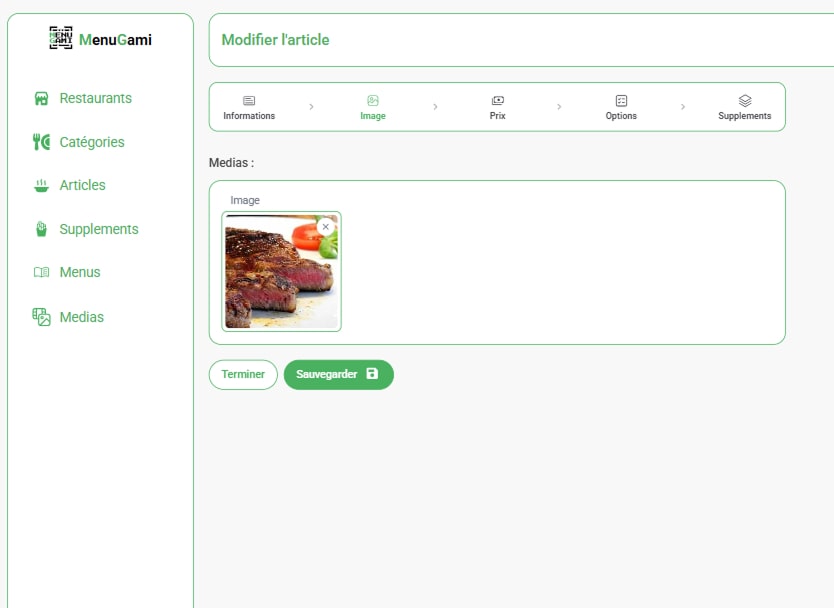
2. Product Image
Upload a high-quality image for the product to make your menu more visually appealing to customers.
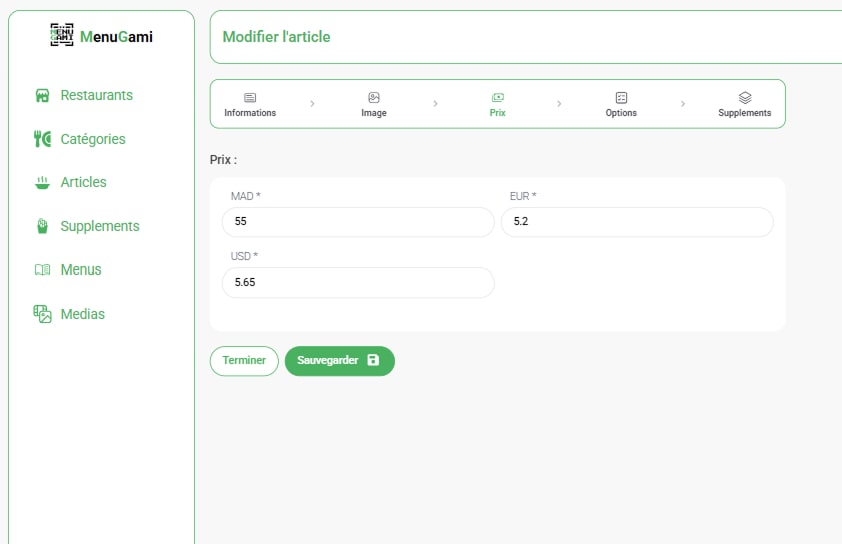
3. Product Prices
Set the pricing for your product, with the ability to define different prices for various currencies.
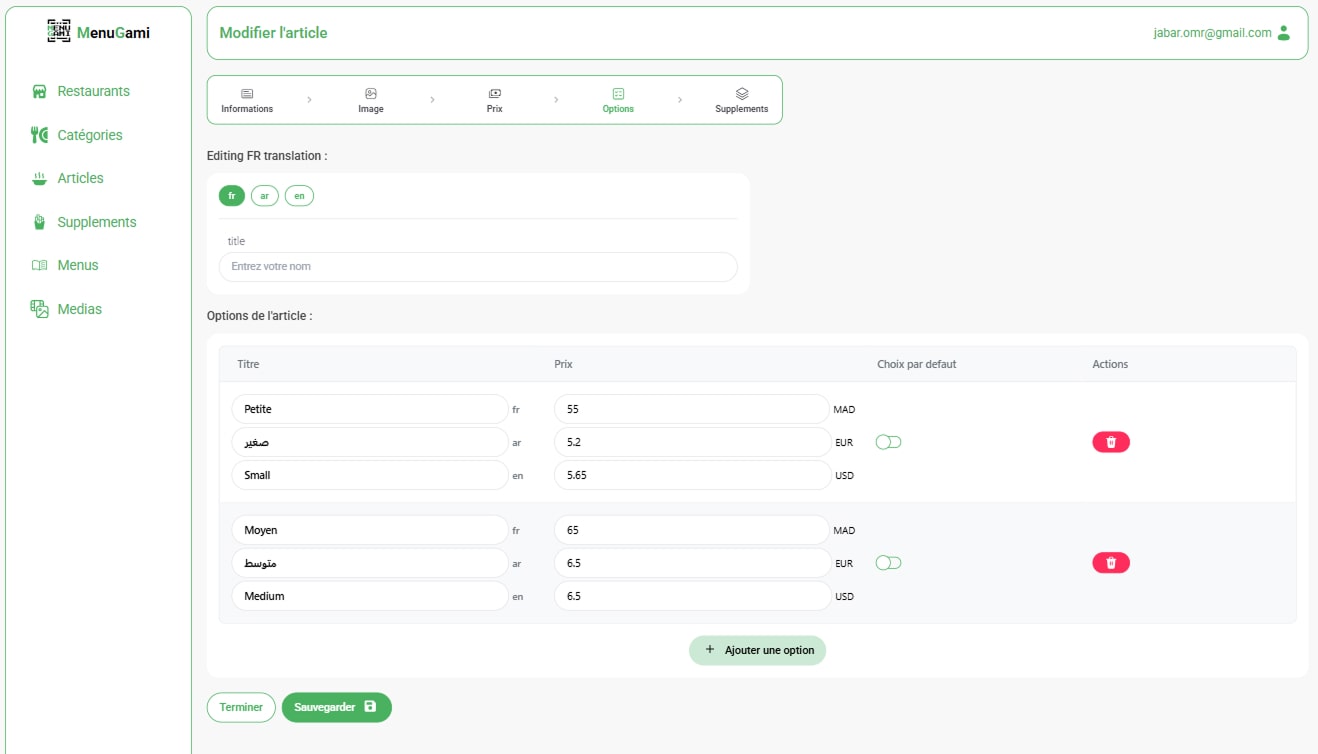
4. Product Options
Define product variations like size or weight. Each option can have its own price and be translated into different languages.
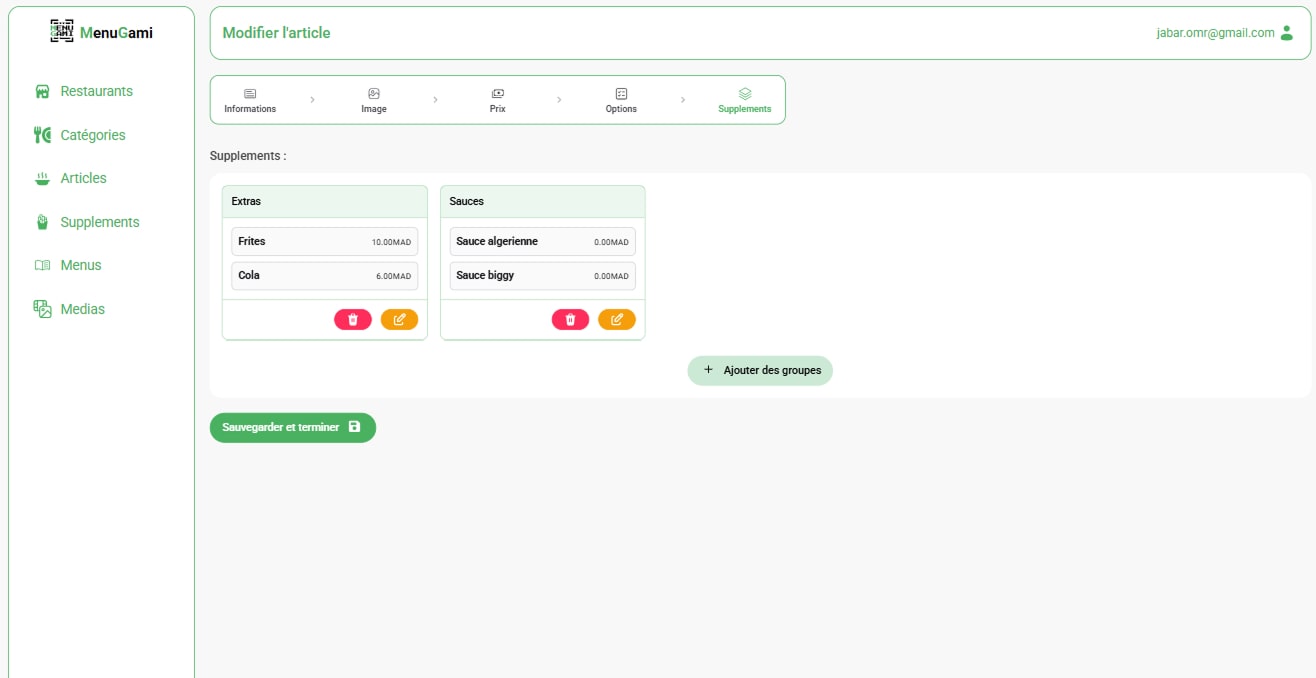
Extras Management
Extras List
Manage all extras associated with a product. You can add new extras and reorder them using drag-and-drop to control how they appear.
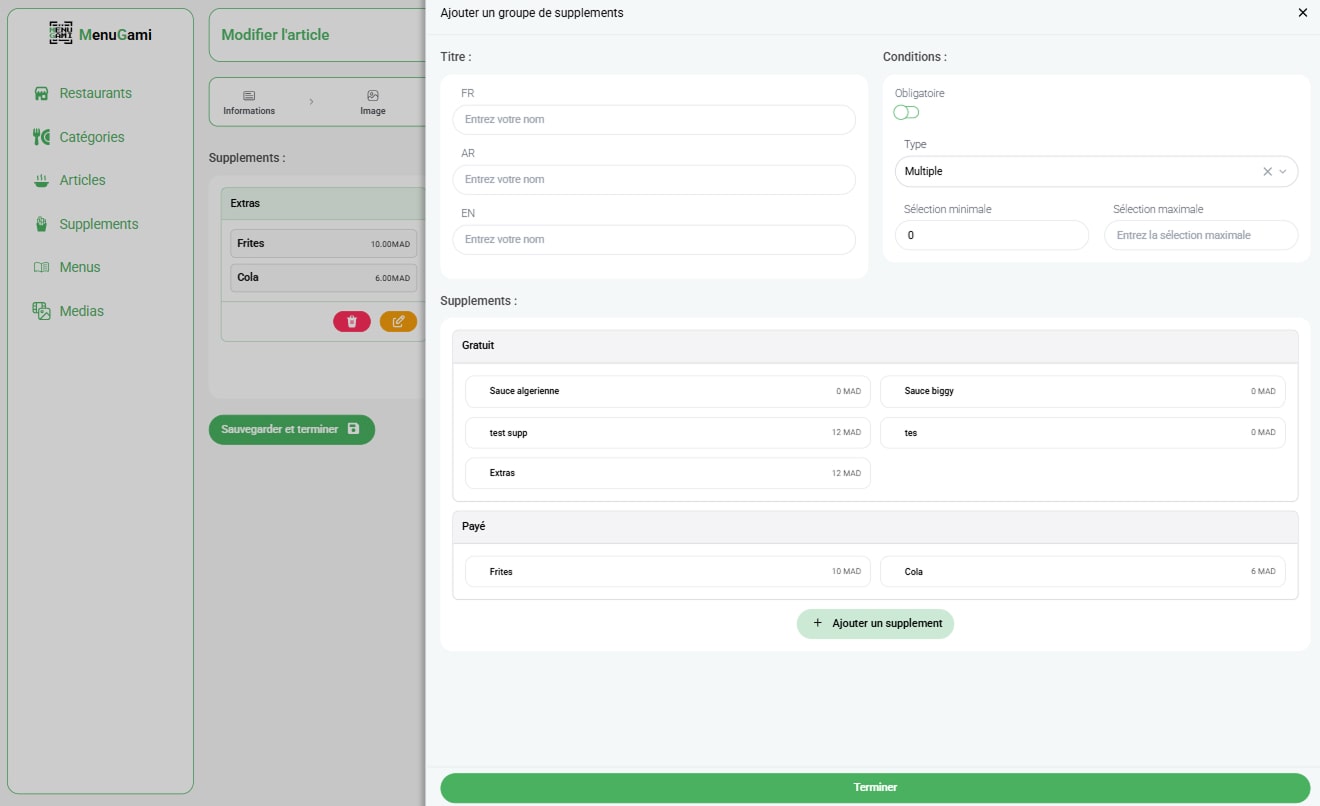
Add/Edit Extra
Configure each extra with a title, and define its behavior: ‘unique’ (choose one), ‘multiple’ (choose several), or ‘quantity’. You can also make it mandatory and set min/max limits.
Supplement Management
The supplements module allows you to create and manage extras and their categories. This helps organize product add-ons, making them easy to assign and configure across your menu.
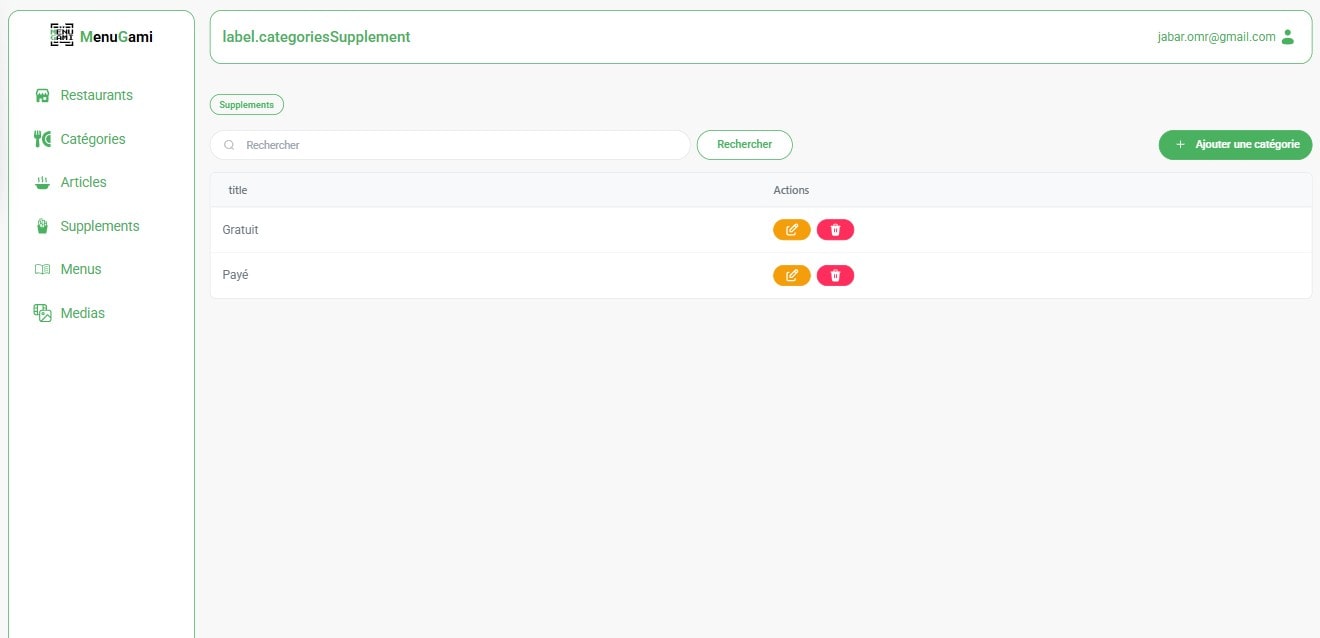
1. Extras Categories List
From this view, you can see all existing extras categories and add new ones to better organize your supplements.
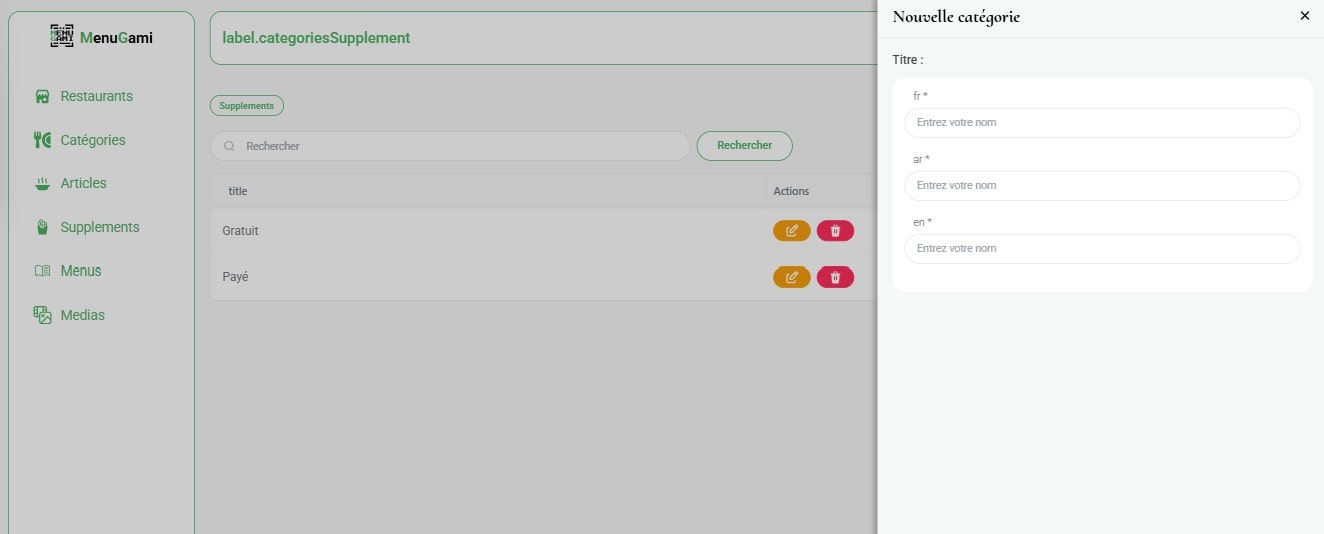
2. Add Extras Category
Create a new category for extras, with support for different languages to cater to a diverse audience.
3. Extras List
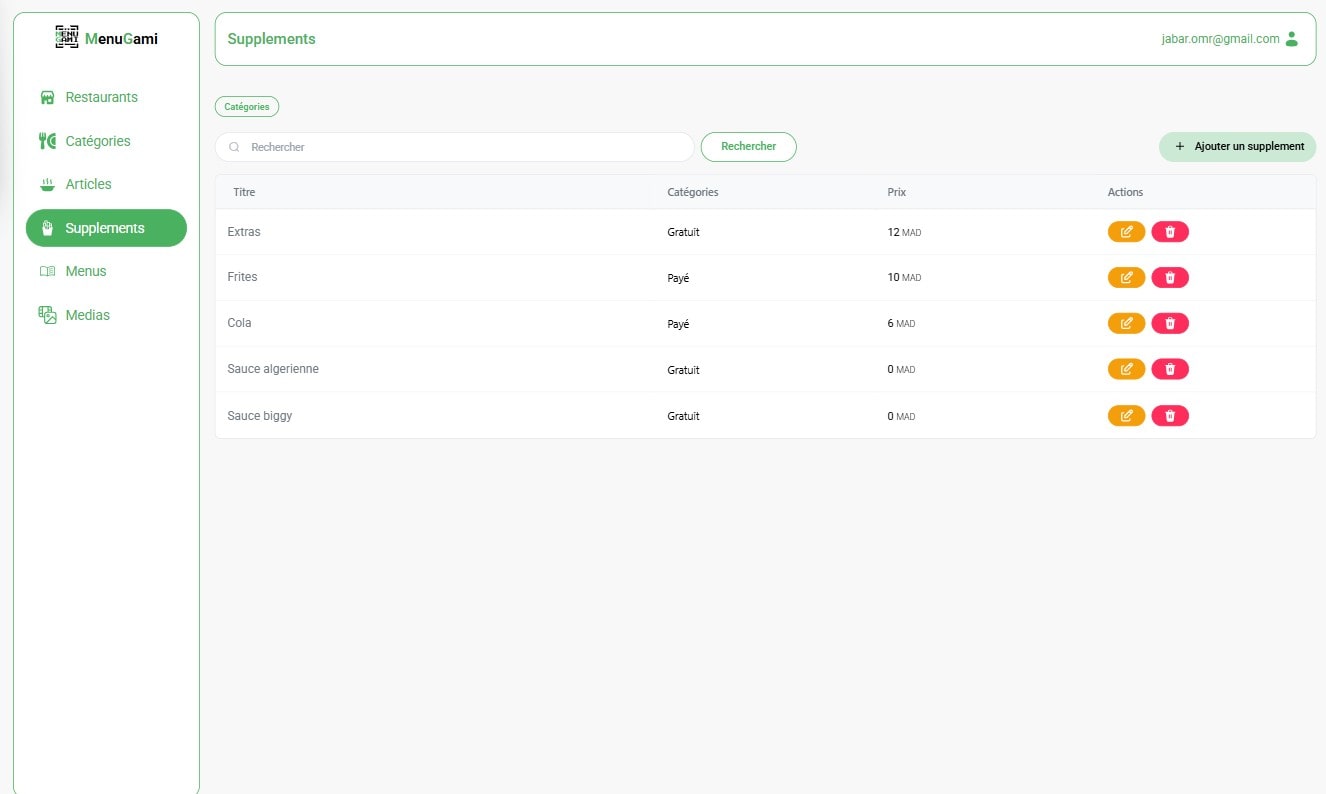
This page displays all available extras. From here, you can navigate to manage categories or add a new extra item.
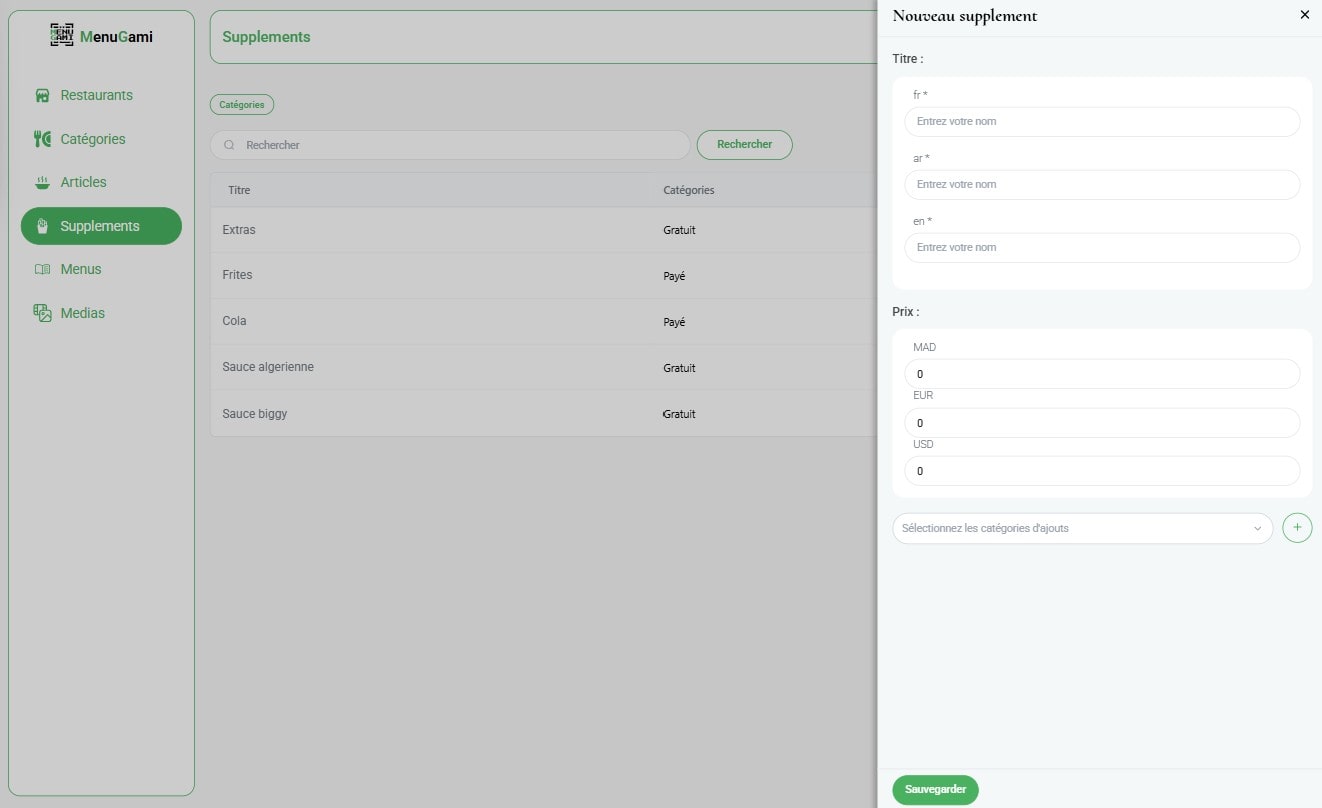
4. Add Extra
Define a new extra with a title in multiple languages, set its price for different currencies, and assign it to a category.
Media Library
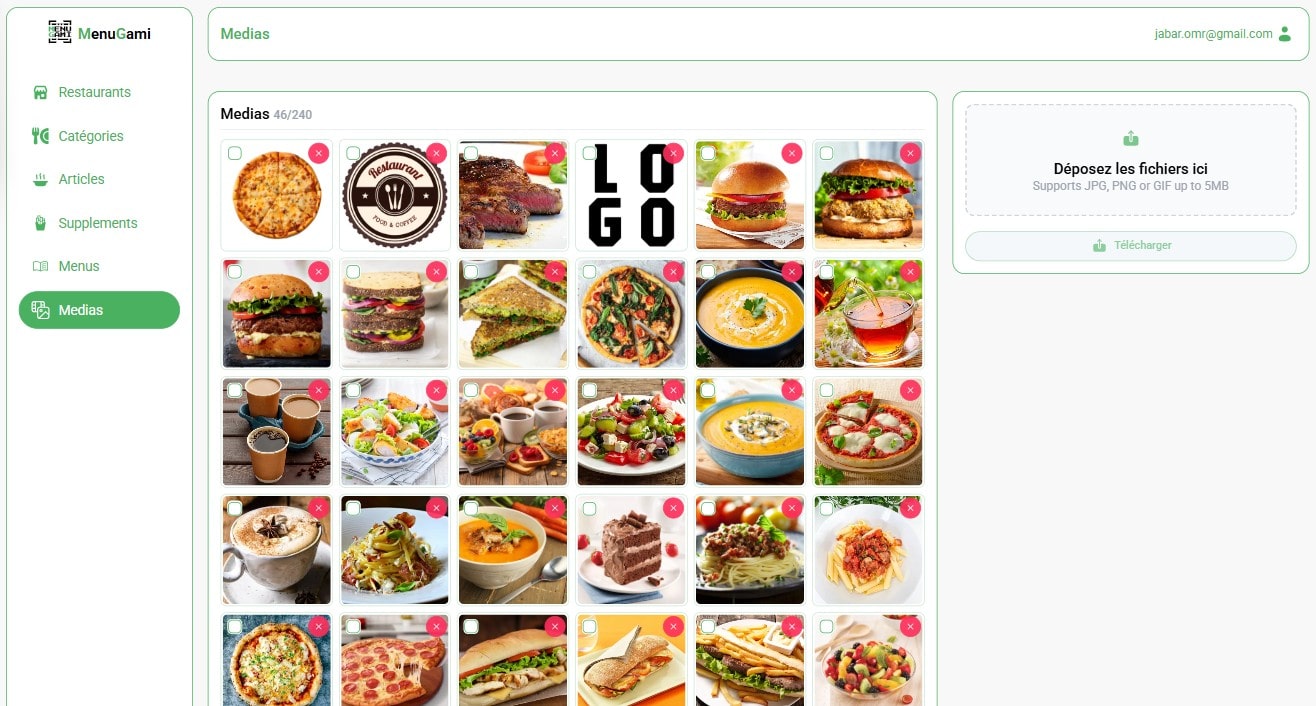
The Media Library is your central repository for all visual assets, including images for products, restaurants, and promotions. It helps maintain brand consistency and ensures all media is optimized for performance.
Media Management
In this unified view, you can see all uploaded media. You can upload new images and remove any that are no longer in use. It's important to manage your storage, as each account plan has a maximum media capacity. Deleting unused media helps you stay within your limit.